
[kc_row use_container=”yes” force=”no” column_align=”middle” video_mute=”no” _id=”303302″][kc_column width=”12/12″ video_mute=”no” _id=”941452″][kc_column_text _id=”837465″]
Common Laptop Display & Charging Issues: Fixing Black Lines, Dead Pixels & More
When you look at the screen of your laptop, and you see some weird lines in black or small spots too bright, and the charger does not do its job adequately, you are not the only one. The display and charging issues of laptops are quite prevalent, particularly on older models or on ones that may be subjected to heavy usage on a daily basis. All these problems can be very annoying, yet in most cases, they can be easily resolved. Be it a black line on laptop screen HP, an unchangeable battery or flickering pixels, a little bit of knowledge about what is going wrong will make you fix it more quickly. So slack! Let us take a look at the problems that are the most common and how you can confidently address them.
Why Are There Black Lines on My Laptop Screen?
It can appear as a black line on the screen. It is an issue that lots of HP laptop users complain about. The black line on the laptop display HP could be either vertical or horizontal, and it usually implies that something is not right with the connection or the internal part of the screen or the internal hardware. Other times, it is just a glitch or old graphics drivers. In other cases, it is a hardware problem, such as a broken screen or a loose ribbon cable. When your HP laptop has issues with its computer screen, the fastest solution is to restart the computer and upgrade your display driver. In case it remains, the hardware diagnosis is required. The most typical responses would be screen replacements or cable reattachments.
How to Fix Dead Pixels on a Laptop Screen
If you see a tiny spot on your screen that stays the same colour no matter what you’re watching, you might have a dead or stuck pixel. This can be not very pleasant, especially on a new device. Luckily, dead pixel repair laptop solutions are available. Some software tools gently flash colours over the area, hoping to bring the pixel back to life. In other cases, gentle pressure or tapping on the spot with a soft cloth can help. However, if nothing works and you want to fix dead pixel screen issues for good, screen replacement might be the only permanent fix. Be sure to get it checked by a trained technician before making a big decision.
Laptop Charging Problems: What’s Causing It?
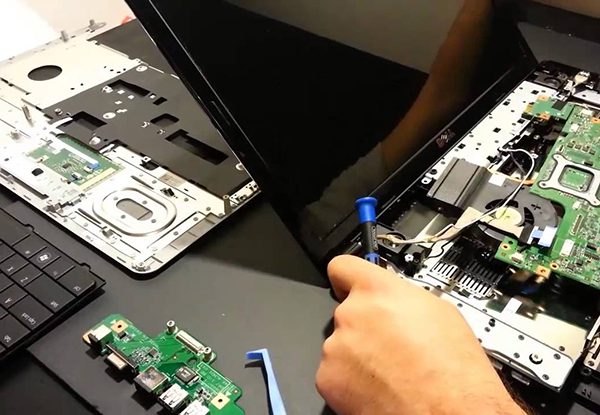
There’s nothing worse than your laptop dying in the middle of something important. Charging problems are another headache many people face. Whether the battery won’t charge, the charger gets hot, or the device only charges when held a certain way, the root cause can vary. Loose charging ports, damaged cables, or worn-out batteries are all common reasons people search for laptop charging repair options. If your charging port wiggles or doesn’t hold the plug tightly, it might need to be re-soldered or replaced entirely. Getting this fixed quickly ensures your laptop remains reliable and safe to use every day.
When to Repair and When to Replace the Screen or Port
Knowing when to repair or replace parts of your laptop can save you money. If the issue is minor—like a single dead pixel or a loose cable—a repair is usually quick and affordable. However, when the damage is more severe, such as long black lines across the screen or a dead charging port, replacement is often the better choice. High-quality repairs usually come with warranties and are performed by trained technicians who know how to protect your data and device. This ensures that problems like HP laptop screen problems or charger malfunctions don’t come back to haunt you.
Preventing Future Laptop Display and Charging Issues
Taking care of your laptop is the best way to avoid common issues. Always handle your screen gently, avoid putting pressure on the lid, and don’t leave it plugged in all the time. Power surges and heat can both damage internal parts over time. For your charger, always pull from the plug, not the cord, and store it in a safe place when not in use. Dust and dirt can also collect in ports and screens, so keep everything clean and dry. If problems still show up, don’t wait—professional help is just a click away.
Conclusion
Your laptop is an important part of your daily life, and screen or charging issues can slow you down fast. Whether you’re trying to solve dead pixel repair laptop problems, need laptop charging repair, or are stuck with a black line on a HP laptop screen, trusted repair experts are available to help. Their experience, quick service, and custom solutions make fixing these issues fast and stress-free. With insured technicians and warranty-backed work, your laptop is in safe hands. For reliable help that restores your device’s full performance, reach out today and get back to work without worry.
[/kc_column_text][/kc_column][/kc_row][kc_row _id=”378342″][kc_column width=”12/12″ video_mute=”no” _id=”434476″][kc_column_text _id=”684981″]
FAQs
[/kc_column_text][kc_accordion _id=”753618″][kc_accordion_tab title=”What causes a black line on an HP laptop screen?” _id=”539546″][kc_column_text _id=”980175″]
Black lines often come from hardware problems like a damaged screen, loose cable, or internal crack. Sometimes, outdated drivers or display settings can also cause them. If restarting or updating doesn't help, it's best to get the hardware checked.
[/kc_column_text][/kc_accordion_tab][kc_accordion_tab title=”Can a single dead pixel be repaired or fixed permanently?” _id=”257337″][kc_column_text _id=”859875″]
Sometimes yes, sometimes no. Software tools and gentle tapping might revive a stuck pixel, but a truly dead pixel often can't be fixed. If it bothers you, replacing the screen is the most permanent solution.
[/kc_column_text][/kc_accordion_tab][kc_accordion_tab title=”How much does it cost to repair a laptop charging port?” _id=”245546″][kc_column_text _id=”979240″]
Repair costs vary, but fixing a laptop charging port can range from low to moderate, depending on the damage. Ports that need full replacement usually cost more than ports that just need tightening or cleaning.
[/kc_column_text][/kc_accordion_tab][kc_accordion_tab title=”Are black lines on screens a sign of hardware failure?” _id=”745249″][kc_column_text _id=”349263″]
Yes, they often are. While some may come from software errors, most black lines suggest internal hardware damage or loose screen connections. It's best to get them looked at quickly to prevent further issues.
[/kc_column_text][/kc_accordion_tab][/kc_accordion][/kc_column][/kc_row]